Staff Service Desk
Knowledge Base > Service Desk > Staff Service Desk
Service Desk / Helpdesk – Staff User Guide
This guide explains how staff members use the Helpdesk system to manage, respond to, and resolve support tickets raised by members.
1. What is the Service Desk?
The Service Desk is a Helpdesk module and is used to track support requests raised by members. Each ticket:
- Belongs to a member (the ticket originator)
- Can have one or more staff members assigned
- Can contain comments and a solution
- Moves through statuses such as Assigned, Waiting on Info, Resolved, and Closed
2. Viewing Helpdesk Tickets
My Tickets
Staff can view tickets they are involved with by opening My Helpdesk Tickets. This includes:
- Tickets you are assigned to
- Tickets you originally raised yourself
Tickets can be viewed as:
- A list
- A board view (if the project board module is enabled)
Focused Tickets
The Focused Tickets view shows only tickets that:
- Are marked as Focused
- Are assigned to you
This is useful for managing high-priority work.
3. Ticket Statuses (Important)
Tickets move through the following common statuses:
- Assigned – Ticket is actively being worked on
- Waiting on Info – Waiting for the member to respond
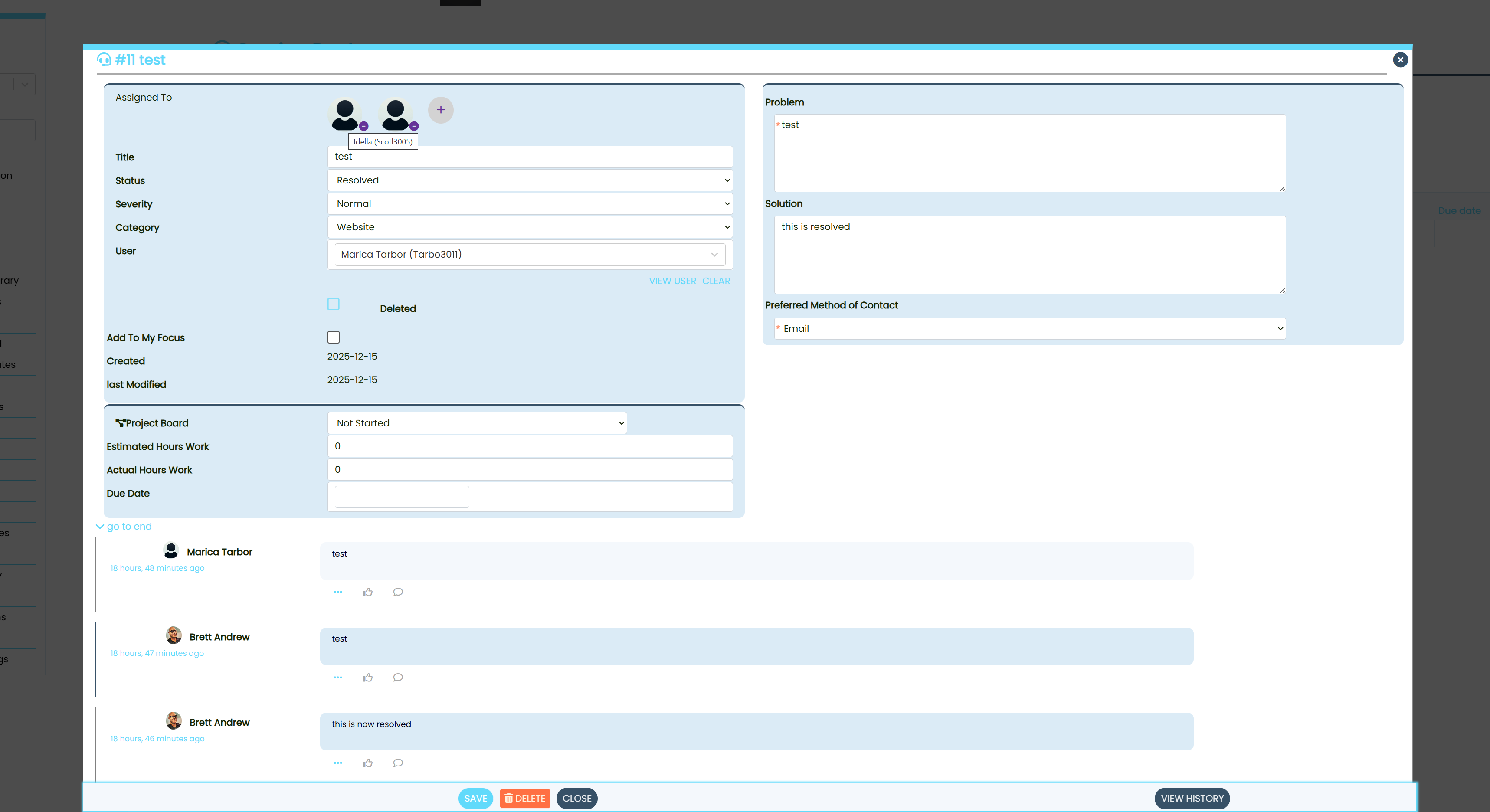
- Resolved – Issue has been resolved (this triggers a notification)
- Closed – Ticket is finished and archived
⚠️ Important notification rule
A notification is sent to the member when a ticket is set to Resolved and saved and then a general comment is added.
Comments alone do not trigger notifications.
Best practice:
- Update the ticket status to Resolved
- Save the ticket
- Add your final comment
This ensures the member is notified and can view the response. The notification is simply a link to the ticket telling the user that the ticket has been resolved. Use resolved rather than closed so the user has an opportunity to respond. Tickets set to Resolved will autoclose after AutoCloseHelpdeskIssuesAfterXDays (this setting is in Admin Settings > Service Desk > Auto close helpdesk) days.
4. Commenting on Tickets
- All comments are visible to staff and the member who can also add comments at anytime.
- Comments are stored in the ticket history
- Members will see comments when they log in
⚠️ Comments do not send notifications unless the ticket status is changed to Resolved.
5. Assigning Users to Tickets
Staff can:
- Assign themselves to a ticket
- Assign other staff members
- Remove assignments (as long as at least one assigned user remains)
At least one assigned user must remain on a ticket at all times.
6. Boards (Staff Only)
Boards are used to visually organise tickets (similar to a Jira or Kanban board).
Staff can:
- Move tickets between boards
- Reorder tickets within a board
- Move tickets into or out of Closed
Moving a ticket:
- Into Closed will close the ticket
- Out of Closed will return it to Assigned
7. Viewing Helpdesk Tickets on a User Profile
Each user profile shows:
- All Helpdesk tickets raised by that member
This allows staff to:
- See previous issues
- Understand history and context
- Avoid duplicate troubleshooting
8. Deleting Tickets and Assignments
- Tickets are soft-deleted (not permanently removed)
- Assignments can be removed, but only if another assigned user remains
9. Categories and Severity (Staff Only)
Staff can manage:
- Helpdesk Categories
- Severity levels
- Boards per category
These are used to organise and prioritise tickets.
10. Best Practice Summary
- Always set tickets to Resolved to notify members
- Use Waiting on Info when the member needs to reply
- Assign tickets clearly so ownership is obvious
- Use Focused Tickets for priority work
- Review a user’s Helpdesk history before responding
If something looks missing or unclear, please raise it internally — many Helpdesk improvements come directly from staff feedback.
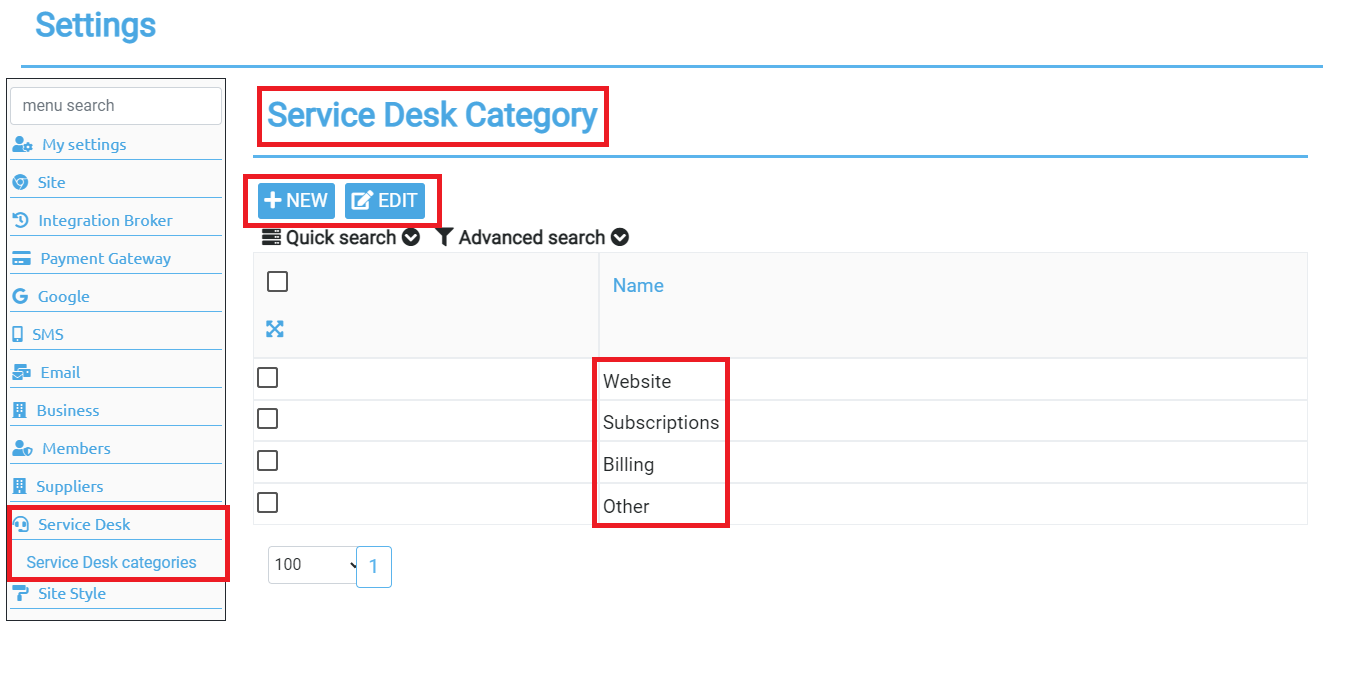
If you go to Help Desk as an administrator and click on the admin settings, you'll see different Service Desk Categories by default, namely Website, Subscription, Billing and Other. You can add the auto assigned user or to whom the created tickets will go to in the system. You can remove this though if you do not want this to appear by clicking on the 'edit' button or you can also just add your own by clicking the 'new' button.
You can create tickets on behalf of other users, when you create a ticket as a Staff member you have the option to pick who the ticket is for. When members create a ticket, they do not see the user selector field (by default the ticket is opened by them).
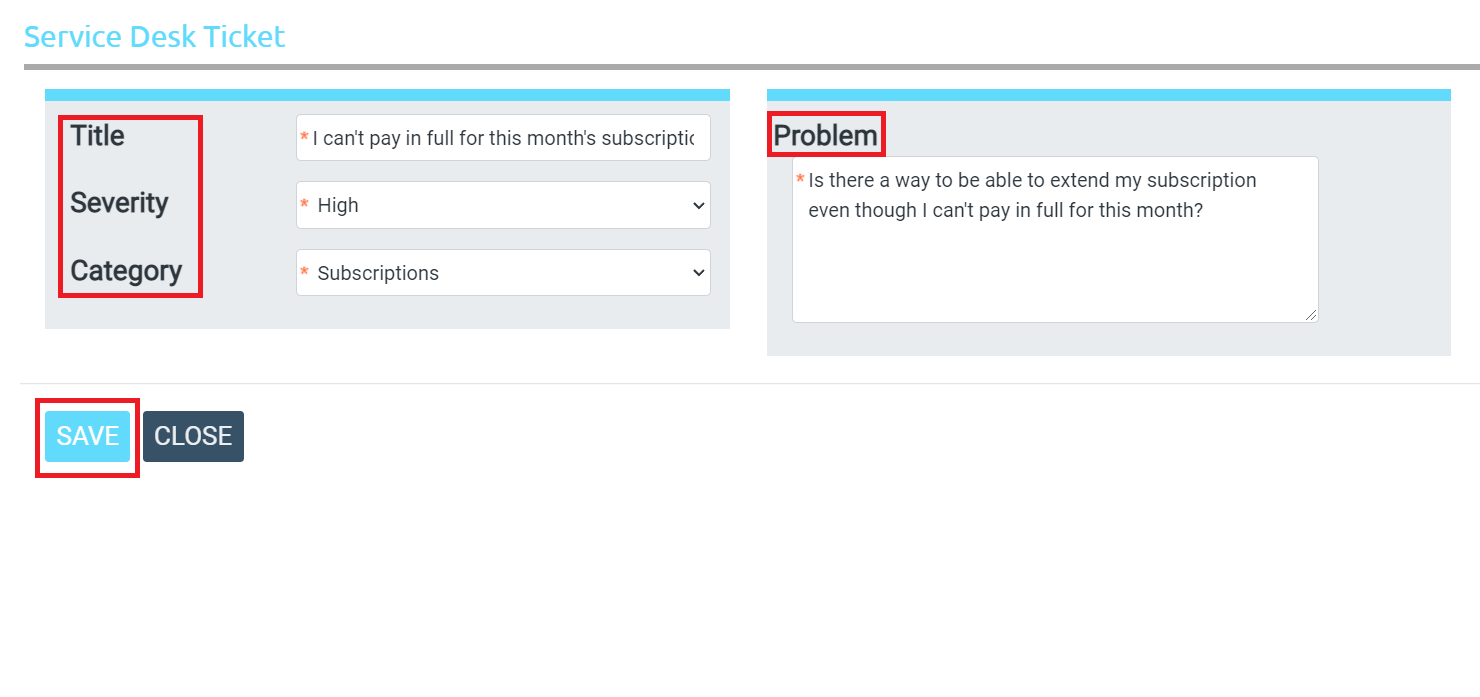
Once the ticket is submitted, then the default person allocated to that Helpdesk Category will receive an email or SMS. That staff member will receive an email and if they login will be able to see and trace in full detail the activity of that user member who raised a ticket.
Staff have full access to edit the ticket, close it or re-assign to someone else.
If the ticket was raised as URGENT, you can assess whether this is valid and lower the severity if necessary. Every update to an URGENT ticket is sent via SMS to the person assigned to that ticket, otherwise it will be sent as an Email.
Updates, emails and SMS messages are not sent to the user who made the update (as they are already aware of the change).
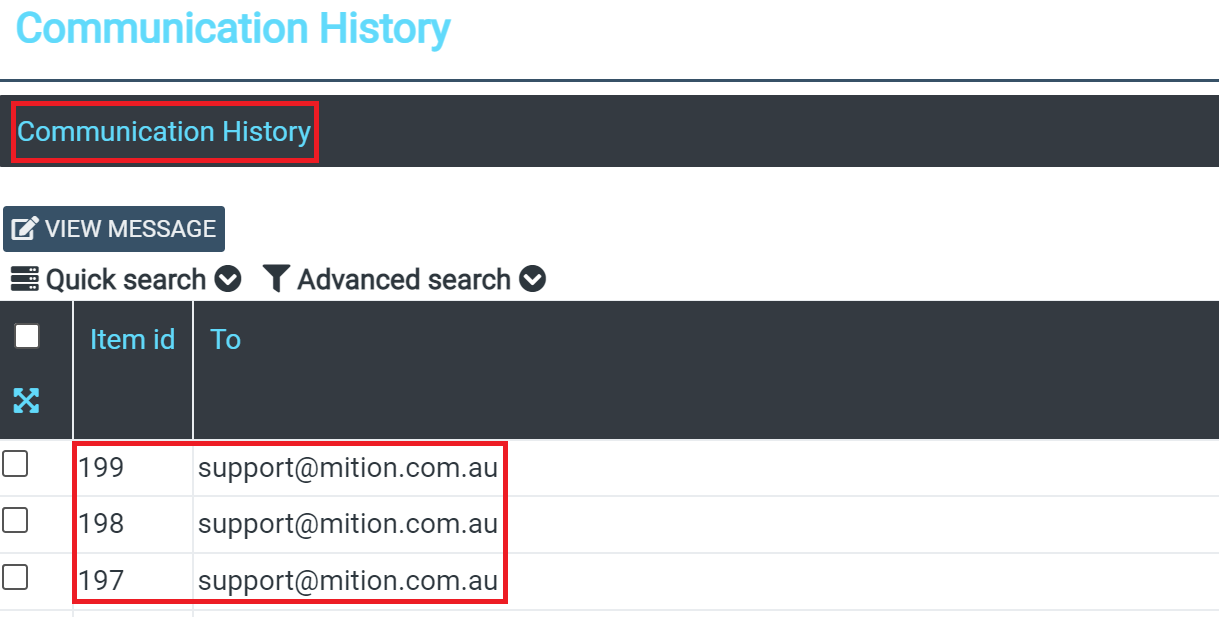
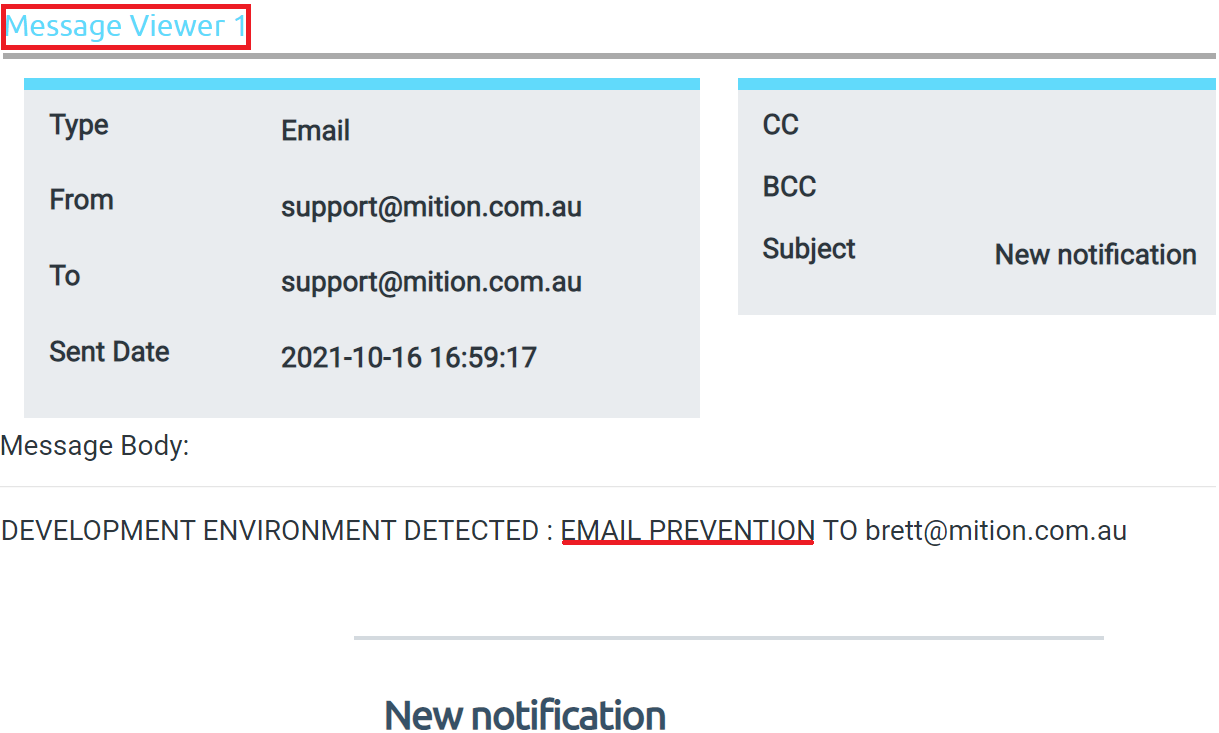
In the message viewer, you'll see the actual information of the ticket raised by the user member such as the time the email was sent, the body of the message which includes their concerns or problems. In here you'll be able to read all these leading up to making a conclusion or solution to their problem. (Note: DEV environment is used here as an example so as to prevent unwanted emails to real people)
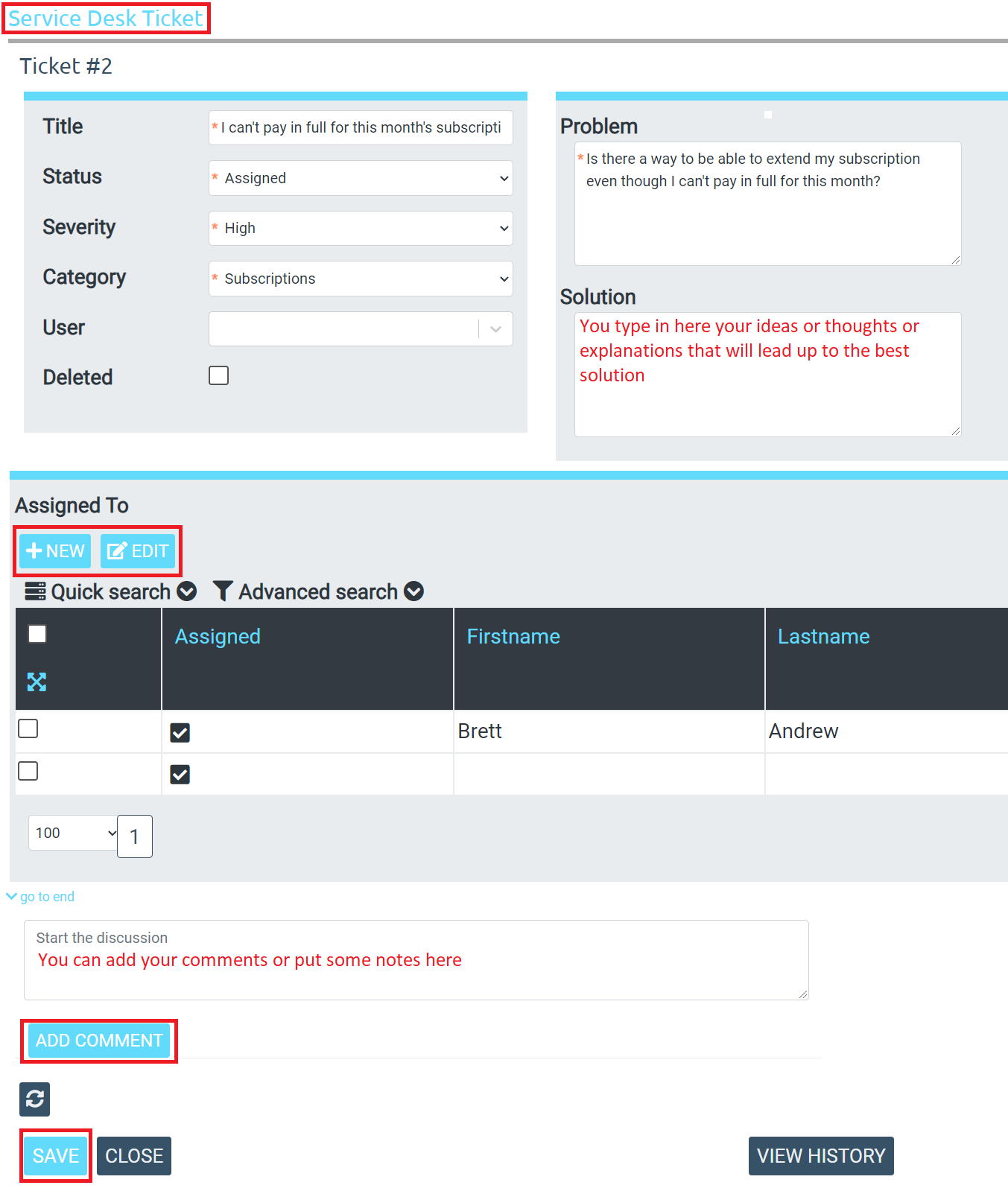
You can edit or change the ticket as far as assigning the ticket to someone else is concerned, or you can add multiple people to it. You can add comments too. You can look at the different severities and categories so that when you get a handful of tickets, you'll be able to prioritize which should be resolved first. Again, these severities include Urgent, High, Normal and Low, while Categories include Website, Subscriptions, Billing and Other.
Another good thing here is that when a ticket is raised and URGENT severity is selected, the system will actually send a TXT/SMS message to the person in charge of that category or assigned to it, thus alerting them to respond accordingly.
TXT and SMS messages are only sent if that user has a valid mobile number. I
This is very useful and important to take action to your members' requirements to help them complete their task.
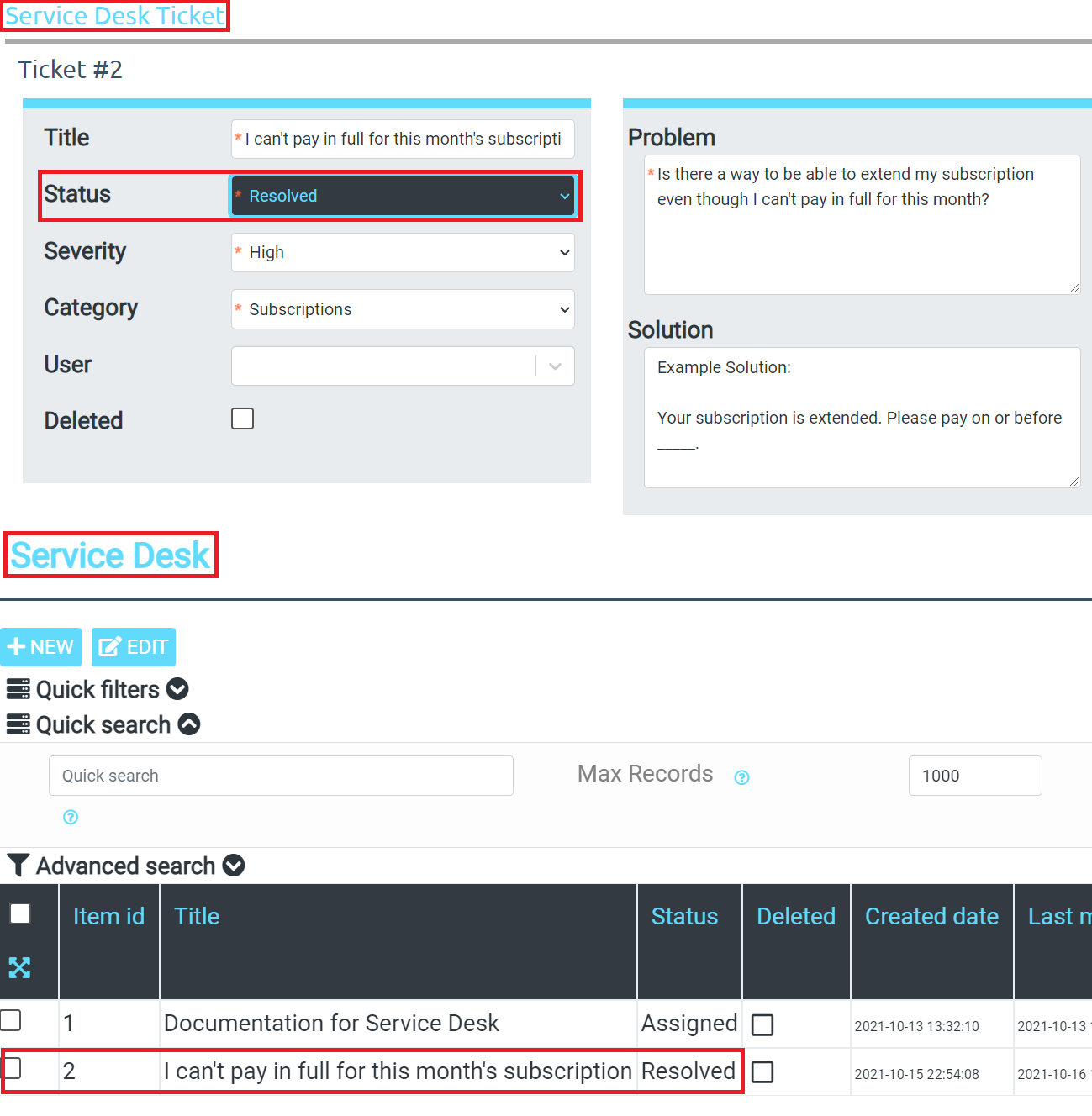
Once you actually solve the problem, you can mark it as 'resolved'. Example is when as a Help Desk administrator, you extended the subscription of the user member who raised a ticket with that specific concern. This user member will receive a message notifying that the ticket is actioned upon and their subscription is extended which means they can continue using the service.