Events → On‑Demand Events
Knowledge Base > Events > Events → On‑Demand Events
On‑Demand events operate differently from traditional scheduled events, and the system needs to reflect those differences accurately. This document outlines the steps required to ensure that email tags, ticket types, and reminders correctly represent On‑Demand purchases without displaying irrelevant date‑based information.
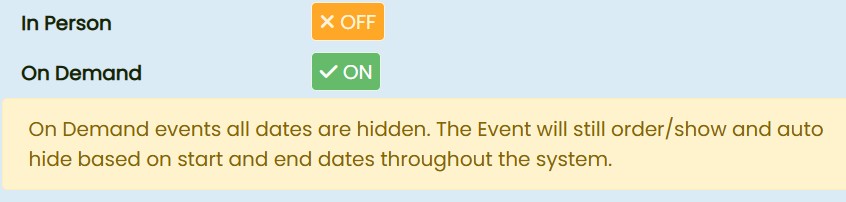

Standard events:
- The
[EventDetails]email tag currently:- Shows event start date
- Shows event end date
- Includes an “Add to Calendar” link
- This is correct for scheduled, time‑based events.
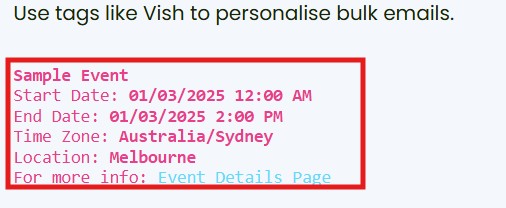
On‑Demand events:
When an event is marked as On Demand:
- Dates are hidden: Start and end dates will not be displayed to users.
- Event visibility: The system will still use start and end dates internally to manage ordering and auto-hiding of the event.
- Calendar downloads: Calendar (.ics) files are not generated or available for download.

×