Event Pricing
Knowledge Base > Events > Event Pricing
Event pricing can be tailored to be as simple or as complex as needed. This guide will walk you through the basics of setting up pricing tiers, including member pricing, discount codes, and more.
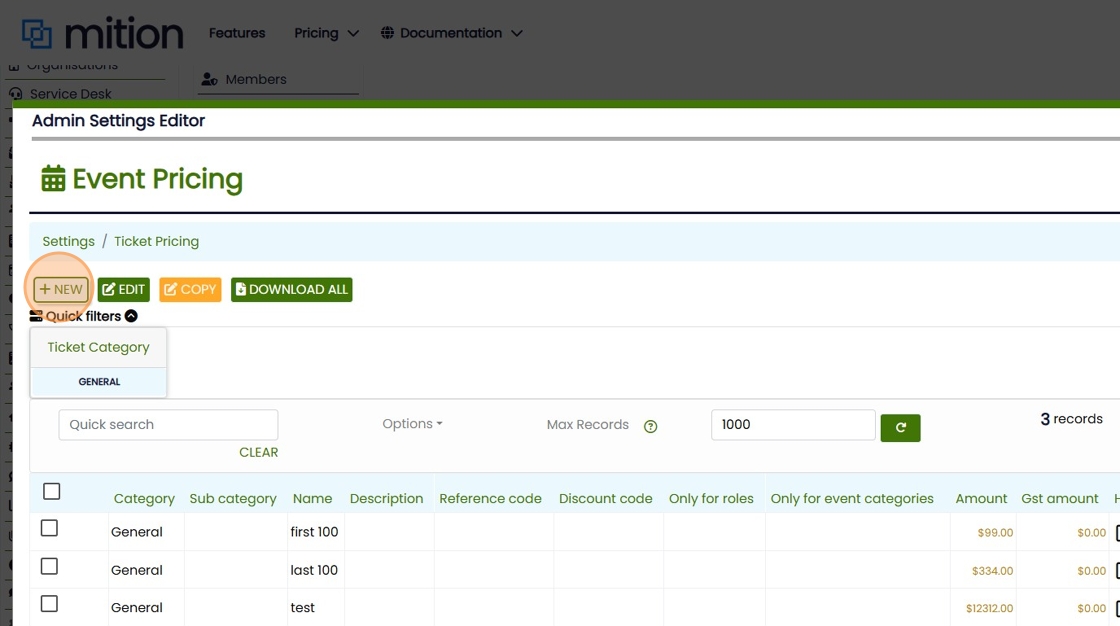
Navigate to Admin Settings > Events > Event Pricing to configure your event's pricing structure.
Here, you can:
✔ Set minimum and maximum ticket quantities
✔ Configure public and member ticket pricing
✔ Enable multiple ticket purchases, allowing one person to buy multiple tickets and allocate them to guests
Customise your pricing strategy to suit your event.
A common ticket type we see for events is to have general public and members only pricing.
This gives your events an exclusive feel, and offers your members a tangible reward for being a part of your organisation.
Let's say you have an event where member tickets are $50 + GST and general public tickets are $75 + GST.
Follow the steps below to see how this can be done.
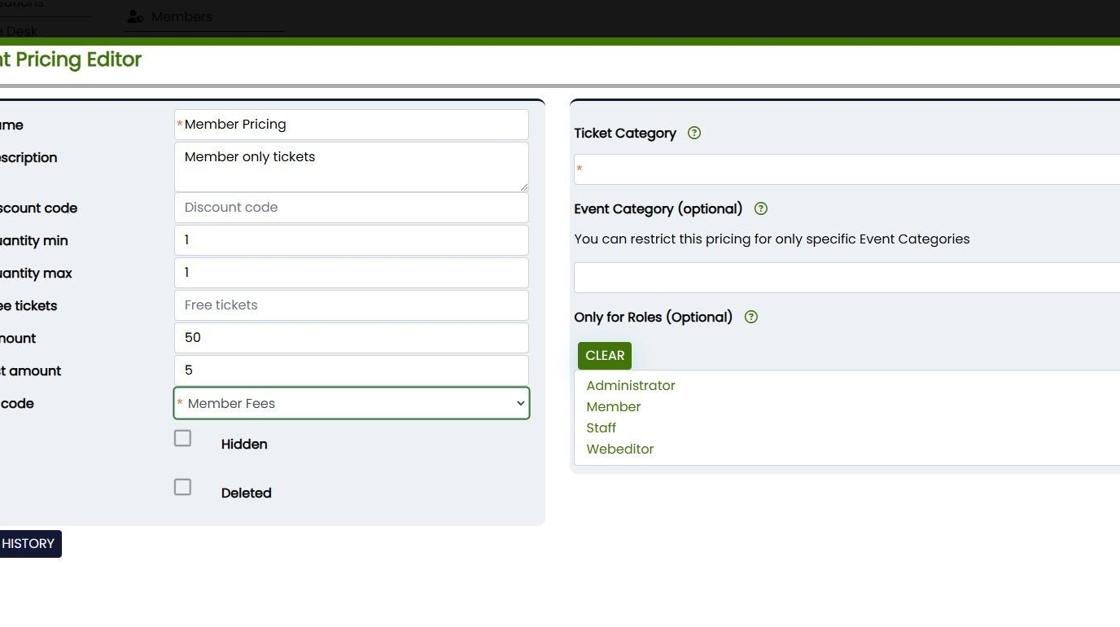
Fill in the details for your ticket pricing:
Name: How you want this to display on the event to your members e.g Member Pricing
Description: Free text to describe more about the ticket type
Discount code: Users can enter a specific code during the event registration process to unlock access to this ticket type (e.g., you could enter FREETIX in this box). This feature is ideal for offering complimentary tickets to volunteers, special guests, or other designated attendees.
Quantity Min/Max : Here you can set a value for the minimum and maximum number of tickets of this type that you'd like users to be able to purchase, e.g. usually a member can only access 1 ticket at member pricing (for themselves), so we set minimum to 1 and maximum to 1.
Free Tickets: Enter a numerical value here if you have an offer where buying one ticket gets you one free, or also helpful when selling a "table" of tickets, such as at conferences and galas where one person buys the ticket and receive 10 places.
Amount: This is your ticket price (GST exclusive)
GST Amount: Enter this manually here if it's applicable
GL Code: You may have a GL code just for events, or it may go to to Member Fees. You can set up different GL codes in Admin Settings > Payment Gateway > General Ledger Codes.
The next section covers ticket category and event category, which can be as specific or as general as you like.
You may have ticket categories for "conference" or "coffee catch up", "webinar" and such. This means you set up the ticket categories once and you can re-use the pricing structure again and again. This is designed to save time when creating recurring events.
Similarly event categories can be set up, and this is an optional field. For example if you had an event category of "conference", it would mean that the pricing structure you just created could only be used on an event of "Conference" category.
The next section is where you can set up which users have access to which pricing.
Because this is members only pricing, we want to show this only to members. Select the member role to do this.
Note: If you want to select multiple roles, hold CTRL and click.
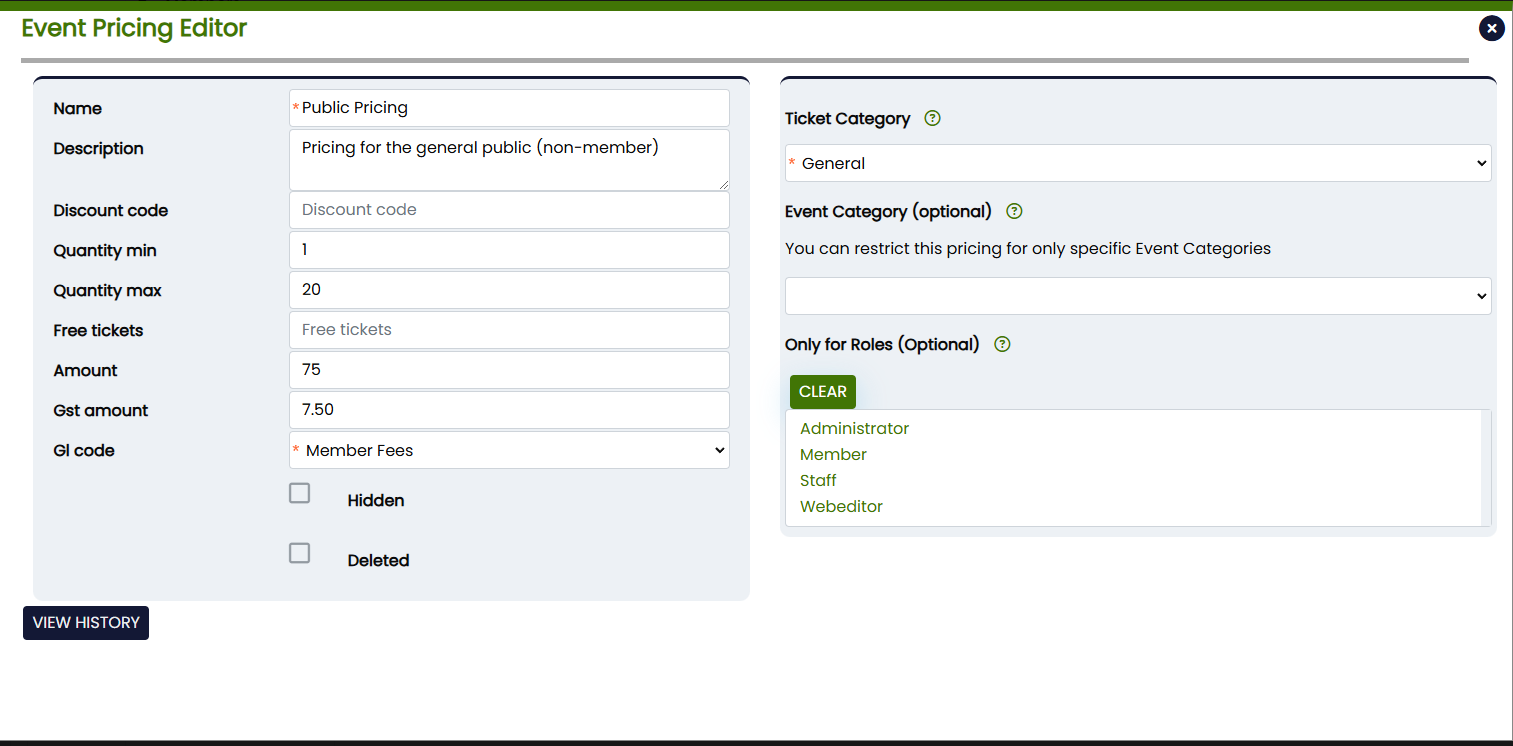
Now let's create a price for a general public ticket.
The main differences here are:
Quantity: You may not want to restrict public pricing, you could leave it as a minimum of and maximum is blank, or cap it at a reasonable number. Here we have gone with 20.
Amount: We have made our public tickets a bit more expensive than the member pricing at $75 + GST.
Roles: Because you want this accessible to everyone, you wouldn't place any role restrictions here.
For specific event creation instructions, refer to the previous page here
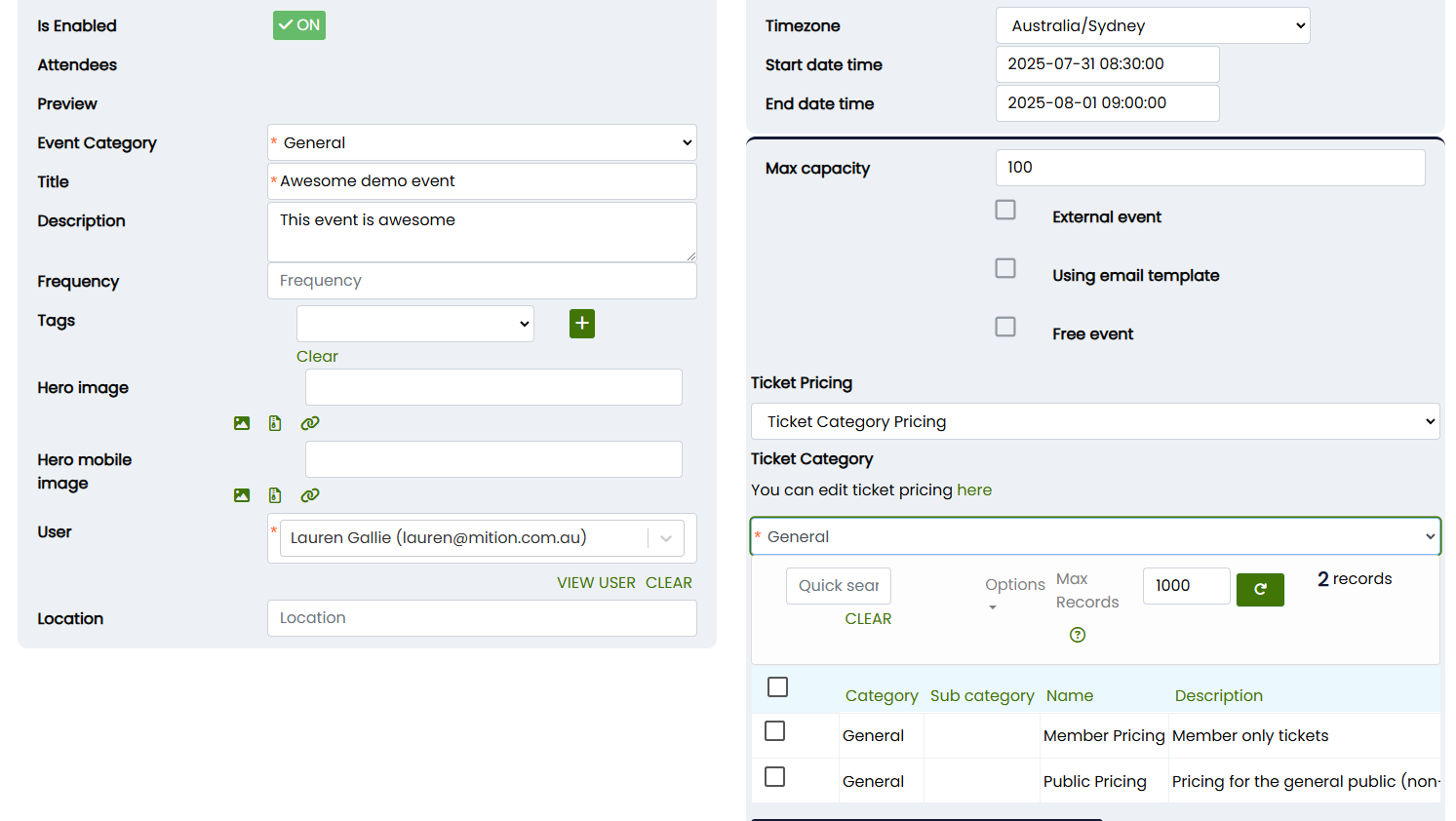
After setting up the event specifics, such as date, time, location, etc, untick the "Free Event" box.
This gives access to a ticket pricing category, select "Ticket Category Pricing" and in the Ticket Category box, select "General" (which is the one we just created, or use the applicable one for your event).
This will show the two pricing tiers we just created under that category.
Now hit "Save" and then Preview your event.
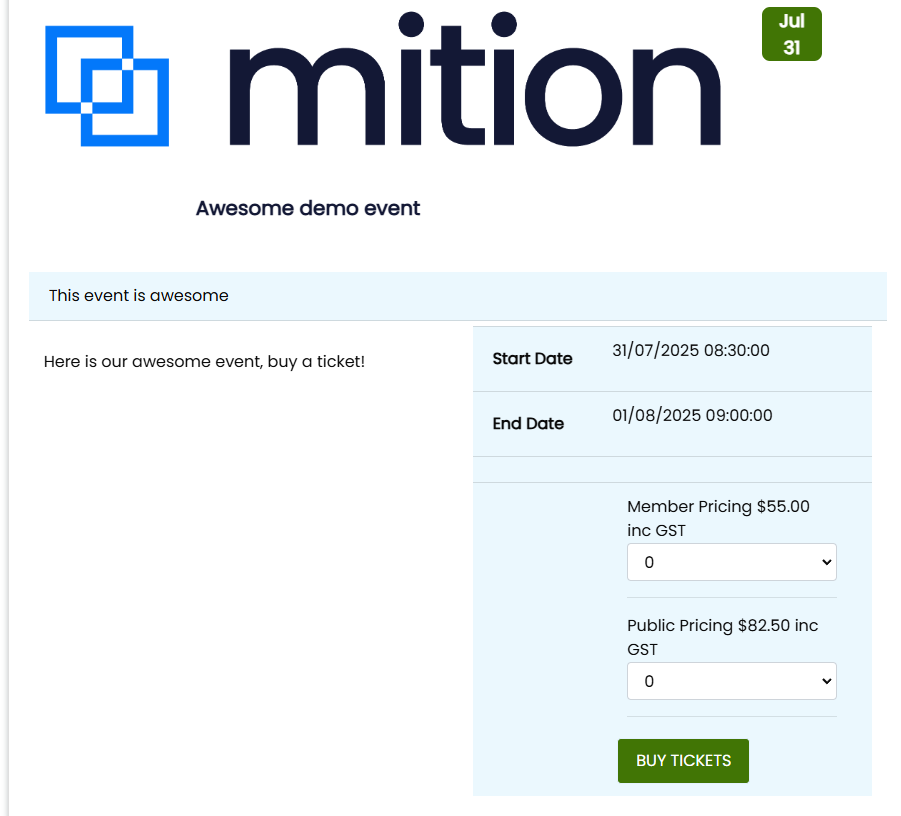
After selecting PREVIEW on your event creation page, you'll be shown what your event looks like to users.
You'll only be able to see the pricing applicable to your role, however you can always impersonate a user with a different role to see what pricing they can access.
Your event is now ready to go! Send to your members in an email and publish to a webpage!
This one is easy, create your Ticket Price and allocate 9 Free tickets with it, this will mean the user purchase 10 tickets with this one ticket. Set the price to a table of 10. You can do the same for a table of 20 or table of 100 or any number you want.
A bonus ticket is a ticket to the Gala or Bootcamp that is complimentary with another ticket. By separating the tickets you allow your guest to transfer this ticket to another users (if the event category permits ticket transferring) or utilise it for themselves.
Step-by-Step Guide to Setting Up an Event Bonus Ticket
- Access the Workflow Configuration:Log in to your Mition admin account.
From the administrative dashboard, navigate to the "Workflows" section, and add a new workflow under "Event", select the configuration for "Event Bonus Ticket (different type)."
- Create a New Workflow Component:
Name your component appropriately (e.g., “Event Bonus Ticket (different type)”).
Provide a description that clearly states the purpose of the ticket, such as “Allows users to receive a bonus ticket type for selected events.”
- Define Available Sections:Specify the section(s) where this bonus ticket will be applicable, such as “Event.”
Ensure that the selected section correlates with the event types your organisation operates.
- Set Up Field Definitions:
Configure the fields that users will interact with when creating a bonus ticket. The fields may include:
Event Category (Field 1)Type: Dropdown
Metadata: Select from the event categories available in your system (e.g., Dinners, Workshops).
Event Title (Field 2)Type: Dropdown
Metadata: Pull from the events set up as available for the selected category.
Ticket Name (Field 3)Type: Dropdown
Metadata: Provide options for the ticket types corresponding to the selected event.
Free Ticket Quantity (Field 4)Type: Integer
Description: Indicate the number of free tickets users can request.
Free Ticket Category (Field 5)Type: Dropdown
Metadata: Pulled from the list of ticket categories.
- Validation and Matching Rules:
Ensure the workflow rules include validations that check:If theEventCategory,EventTitle, andTicketNamefields are selected and match existing records in the database.
That theFreeTicketQuantityis greater than zero.
The corresponding ticket category matches existing ticket prices in the system.
Include conditions in the workflow logic that enforce ticket creation only if all criteria are fulfilled. The system should confirm matches against:The event category selected.
The ticket name associated with both the event and user request.
The event title matching the user's selection.
- Save and Deploy the Workflow:After setting up the component with the fields and matching rules, save your configurations.
Deploy the workflow to ensure it becomes active and available for users to access.
- Testing the Setup:Conduct tests to confirm users can successfully create bonus tickets based on your configuration.
Run through various scenarios to ensure that:Correct matching of events and tickets results in the successful creation of free tickets.
Invalid selections lead to appropriate validation messages and restrict ticket creation.
- Monitor and Maintain:Regularly review the performance and usage of the workflow to ensure it continues to meet user needs.
Be prepared to modify categories, events, or validation logic as necessary based on user feedback or changes to event offerings.
Event Tickets & Course Rules
This page explains what happens when events and tickets are created, edited or deleted, especially for events that are marked “Free with Parent Event”.
1. Event Types
- Parent Event
The main event (e.g. “6-Week Course”). People sign up to this event to join the course. - Child Events
Individual sessions under the parent (e.g. Week 1, Week 2, Week 3). - Free-with-Parent Child Events (
isFreeWithParentEvent = true)
Child events that are automatically included when a user joins the parent event. Users do not buy separate tickets for these; they are included with the parent.
2. What Happens When You Add or Edit Events
2.1 Creating a New Parent Event
2.2 Creating a New Child Event Marked “Free with Parent”
When you create a new child event under a parent and mark it as Free with Parent:
- All users who are already subscribed to the parent event are automatically added to the new child event,
- Only if:
- The child event starts in the future (or from yesterday onwards), and
- The child event is not sold out, and
- The user originally joined with a single ticket (TicketQuantity = 1), and
- The user is marked as attending.
- If a user previously had a record for that child event (even if it was deleted), they will not be re-added. This protects users who were deliberately removed from a session.
2.3 Creating a Child Event That Is Not Free-with-Parent
- No automatic enrolments occur.
2.4 Editing an Existing Event
not auto-add or auto-remove any users.
newly created events, not edits.
2.5 Renaming the Parent Event
- If the parent event title is changed, any child events under that parent that were using the old title are automatically updated to use the parent’s new title. Important: this is only if they matched the OLD parent title exactly.
3. What Happens When a User Books a Ticket
3.1 Normal (Paid) Events
Ticket Price attached.
- If a ticket is saved for a paid event without a Ticket Price (and it is not a free-with-parent child), the system will block the save and show an error.
3.2 Joining the Parent Event (Courses / Series)
When a user joins the parent event for a course or series:
- They get a ticket for the parent event.
- The system will automatically create tickets for all relevant future child events that are marked Free with Parent, as long as:
- The child event is not sold out, and
- The user doesn’t already have (or hasn’t previously had) a ticket for that child event.
3.3 Joining a Free-with-Parent Child Event Directly
If a user joins a child event that is marked Free with Parent directly:
- The system treats this as joining the course.
- The user is linked into the parent event and auto-added to the other future free-with-parent sessions in the same way as if they had joined the parent.
4. What Happens When a User Deletes a Ticket
4.1 Deleting the Parent Ticket (Leaving the Course)
When a user deletes their ticket for the parent event of a course or series:
- The system removes that user’s tickets for:
- The parent event, and
- All child events in the same series that are marked Free with Parent.
- This only affects this user, not other attendees.
- This is treated as “withdrawing from the course”.
- If there was an invoice involved and the invoice is paid, this will prevent this ticket from being deleted and only staff can delete it.
4.2 Deleting a Child Ticket Only
single child event, only that one session is removed.
- Their other sessions in the series remain active.
- The parent course ticket is not automatically deleted.
5. Guest Tickets
Some tickets may have one or more guest records attached (linked to the same User Event).
- When a ticket (User Event) is deleted, all guest tickets under that ticket are also marked as deleted.
- Guest records are never left “orphaned”; they always follow the status of the main ticket they belong to.
Important notes for guest tickets in a course:
- If the parent ticket for a course is deleted for a user, and that ticket had guests:
- The main user’s parent ticket is deleted.
- Any guests linked to that specific ticket are deleted.
6. Paid Invoices & Deleting Tickets
6.1 Deleting Tickets That Belong to a Paid Invoice
- If a ticket is linked to an invoice that is paid or partially paid:
- Normal users cannot delete that ticket.
- Only administrators are allowed to delete tickets attached to a paid or part-paid invoice.
- This protects financial records and avoids breaking paid invoices.
6.2 Deleting Tickets on an Unpaid Invoice
- If a ticket is linked to an invoice that is unpaid, and the user (or admin) deletes that ticket:
- The ticket is marked as deleted.
- Any guests under that ticket are also deleted.
- After the deletion, the system checks if there are any other active tickets still attached to that invoice:
- If there are other tickets on the invoice, the invoice stays active.
- If there are no tickets left and the invoice is still unpaid:
- The invoice is also marked as deleted.
- A comment is added to the invoice explaining it was deleted because all tickets on the unpaid invoice were removed.
6.3 Free-with-Parent Tickets and Invoices
- Free-with-parent child events themselves do not carry individual Ticket Prices or direct invoice lines.
- The invoice is typically associated with the parent event ticket (or other paid tickets).
- Deleting the parent ticket will still respect all invoice rules above before removing the course and its sessions.
7. Summary
- Free-with-parent events automatically include future sessions for course members, while respecting capacity and previous deletions.
- Deleting a parent course ticket removes that user from all included sessions in that series.
- Deleting a child ticket only affects that one session.
- Guest tickets are always deleted when the main ticket is deleted.
- Paid invoices are protected:
- Only admins can delete tickets attached to paid/part-paid invoices.
- Unpaid invoices with no remaining tickets are automatically deleted with an audit note.
Deleting Your Own Event Tickets – What Happens
This guide explains what happens behind the scenes when a normal user deletes their own ticket, for:
- Standard free events (no invoices)
- Paid events with a single ticket on an invoice
- Paid events with multiple tickets on the same invoice
- Invoices that are paid vs not paid
Important: These rules describe what happens for normal users. Administrators have extra powers and may be able to override some of this behaviour.
1. Standard Free Events (No Invoices)
These are events that are marked as free and do not generate an invoice or ticket price line.
What happens when a user deletes their ticket?
- The user’s ticket (User Event) is marked as deleted.
- Any guest tickets attached to that ticket are also marked as deleted.
- There is no invoice involved, so no billing or payment records are affected.
Result: the user (and their guests, if any) are no longer recorded as attending the free event. No financial changes are needed.
2. Paid Events – General Rules
For events that use ticketing and invoices:
- Each ticket is linked to an Invoice (via
InvoiceID). - When a user deletes a ticket:
- We always check the invoice status before allowing or processing the deletion.
- We also delete any guest tickets attached to that specific ticket.
3. Paid Events with a Single Ticket on the Invoice
This is the simplest paid scenario: the invoice contains only one ticket (for example, one registration for $100).
3.1 If the Invoice is Not Paid
When the user deletes their ticket:
- The ticket is marked as deleted.
- Any guest tickets attached to that ticket are also deleted.
- The system checks for other active tickets on the same invoice:
- There are no other tickets left.
- Because the invoice is unpaid and now has no tickets left:
- The invoice is automatically marked as deleted.
- A comment is added to the invoice record noting that it was deleted because all tickets on an unpaid invoice were removed.
Result: Deleting the last ticket on an unpaid invoice will also delete the invoice itself.
3.2 If the Invoice is Paid or Partially Paid
When the user tries to delete their ticket:
- The system checks the invoice status.
- If the invoice is paid or has any amount paid, a normal user is not allowed to delete the ticket.
- The user will see an error message stating that tickets on a paid invoice can only be deleted by an administrator.
Result: A user cannot remove a ticket that belongs to a paid (or part-paid) invoice. An administrator must handle this.
4. Paid Events with Multiple Tickets on the Same Invoice
In this scenario, a single invoice covers multiple tickets. For example:
- 3 x member tickets @ $10 each, and
- 1 x guest ticket @ $1000
4.1 Invoice Not Paid (Unpaid Invoice)
When a user deletes one of their tickets on this unpaid invoice:
- The ticket they deleted is marked as deleted.
- Any guest tickets under that ticket are also deleted.
- The system checks if there are any other active tickets on the same invoice:
- If there are other tickets still active on that invoice:
- The invoice is not deleted.
- The invoice total is not automatically recalculated.
- A note is added to the invoice comments explaining that one or more tickets were deleted but other tickets remain and the invoice was not automatically deleted.
- An email is sent to the administrator recommending that they manually review and adjust the invoice if necessary.
- If the user gradually deletes tickets one by one and eventually deletes the last remaining ticket on this unpaid invoice:
- At the moment the final ticket is deleted, the invoice now has no tickets left.
- Because the invoice is unpaid and empty, it is automatically marked as deleted with a comment explaining why.
- If there are other tickets still active on that invoice:
Result:
- Deleting some (but not all) tickets on an unpaid invoice keeps the invoice alive and flags it for manual admin review.
- Deleting the last remaining ticket on an unpaid invoice will delete the invoice automatically.
4.2 Invoice Paid or Partially Paid
If the invoice has been fully or partially paid:
- A normal user cannot delete any ticket linked to that invoice.
- The system checks:
- If the invoice is paid or has an Amount Paid greater than zero, and the user is not an administrator, the delete request is blocked.
- An administrator can still choose to delete tickets, but this will be handled under admin workflows (e.g. manual refund, credit notes, etc.).
Result: For invoices with any payment, ticket deletion is restricted to admins only. The invoice is never automatically deleted in these cases.
5. Guest Tickets When Deleting a Ticket
Guest tickets are always tied to a main ticket (User Event).
- Whenever a user deletes one of their tickets:
- All guest ticketsdeleted.
- This applies to:
- Free events
- Paid events with a single ticket on an invoice
- Paid events with multiple tickets on an invoice
The invoice behaviour depends on the scenarios described above, but the rule for guests is simple:
If the main ticket goes, its guests go with it.
6. Quick Summary
- Free events (no invoice): Deleting a ticket simply cancels attendance. Guests are also deleted. No invoice is involved.
- Paid event, one ticket on invoice, invoice unpaid: Deleting the ticket deletes the invoice as well.
- Paid event, one ticket on invoice, invoice paid/part-paid: User cannot delete the ticket; only admins can.
- Paid event, multiple tickets on one unpaid invoice:
- Deleting some tickets keeps the invoice and flags it for admin review.
- Deleting the last remaining ticket deletes the invoice automatically.
- Paid event, multiple tickets on a paid/part-paid invoice: Users cannot delete their tickets; only admins can.
- Guest tickets: Always deleted when their main ticket is deleted.