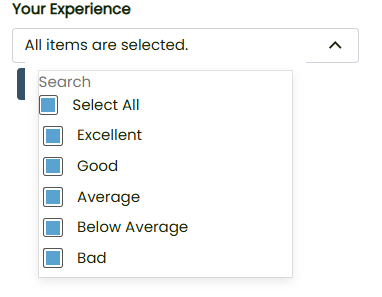
Forms- Dropdown
Knowledge Base > Forms > Dropdown
The Custom Dropdown Data Editor in Mition has been enhanced to make form-building faster, smarter, and more intuitive. Whether you're creating dropdowns for members, suppliers, events, or feedback forms, this tool now supports bulk data entry, sorting, and manual reordering—eliminating the need to retype or reorganize options manually. This guide walks you through how to use the editor effectively.
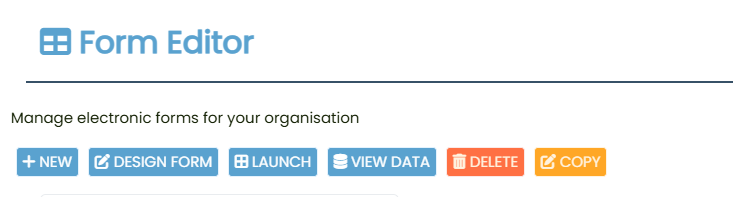
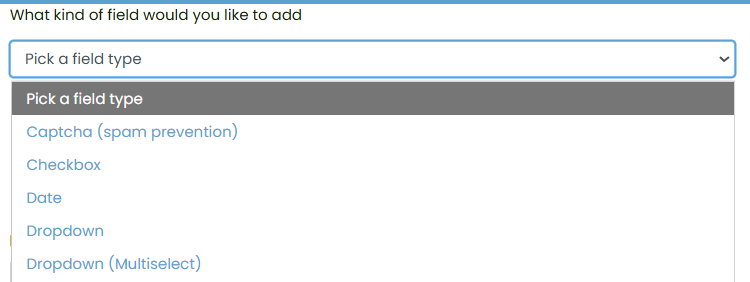
Start by opening the Form Editor and choosing the field type:
- Navigate to the form builder.
- Select Dropdown or Dropdown (Multiselect) from the field type list.
Once the field is added:
- Click on the field to open the Dropdown Data editor.
- You’ll see an input box and options to add or manage entries.


You can add entries in two ways:
- Individually: Type a single value into the input box and click ADD.
Bulk Add: Type multiple values separated by commas (e.g., Excellent,Good,Average,Below Average,Bad) and click ADD to instantly create multiple entries.
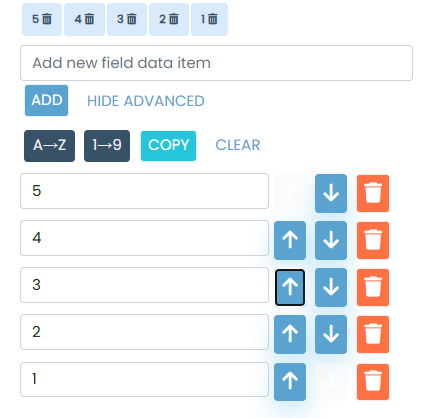
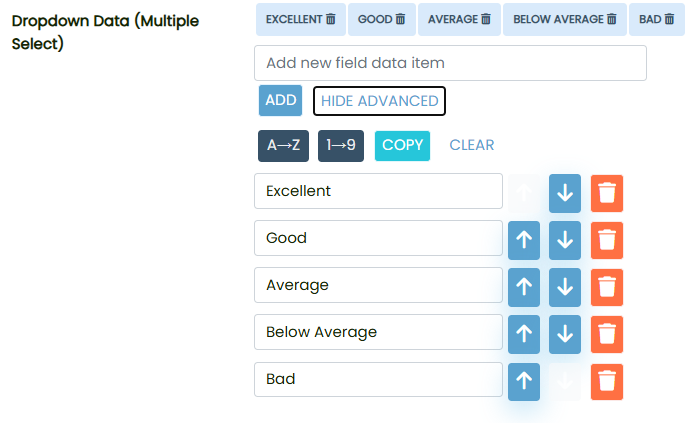
Each entry appears as a button with a delete icon:
- Click the trash icon to remove an entry.
- Use the input field to add new items one at a time.
Click ADVANCED to unlock more controls:
🔼🔽 Move items up or down manually.
🔠 Sort alphabetically (A–Z).
🔢 Sort numerically (1–9).
📋 Copy the list as comma-separated values.
🗑️ Clear all entries.