How to Manually Create an Invoice
Knowledge Base | Invoicing | How to Manually Create an Invoice
This guide explains how to manually create an invoice in the system. Use this process when an invoice is not automatically generated or when you need to issue a custom invoice for a member or organisation.
Creating invoices manually is a straightforward process and can be done either from the main Invoice List or directly through a user’s profile. Both methods follow almost identical steps, with the only difference being that user details are automatically filled in when creating an invoice from their profile. This guide walks you through both options.
Creating an Invoice from the Invoice List
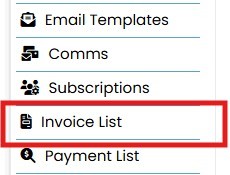
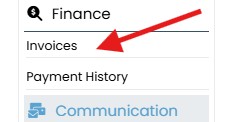
- Navigate to Invoices
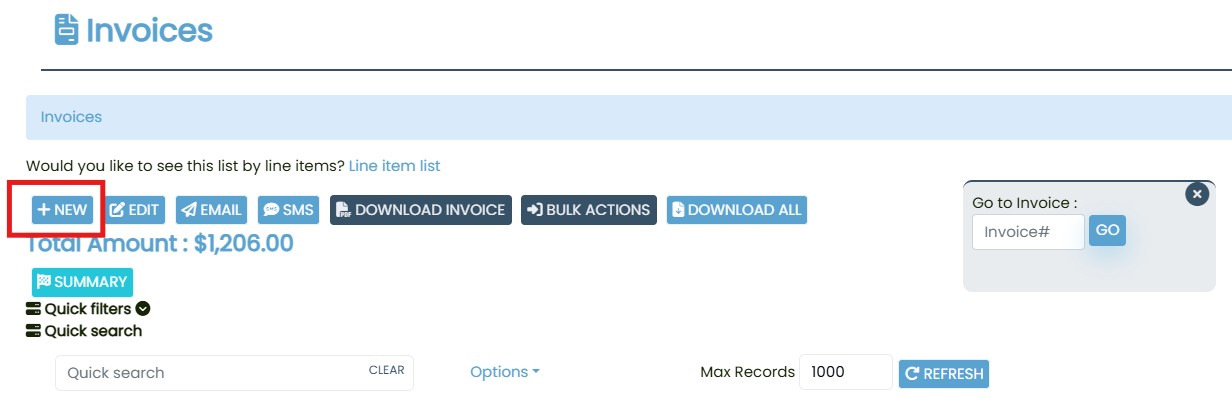
- Select New
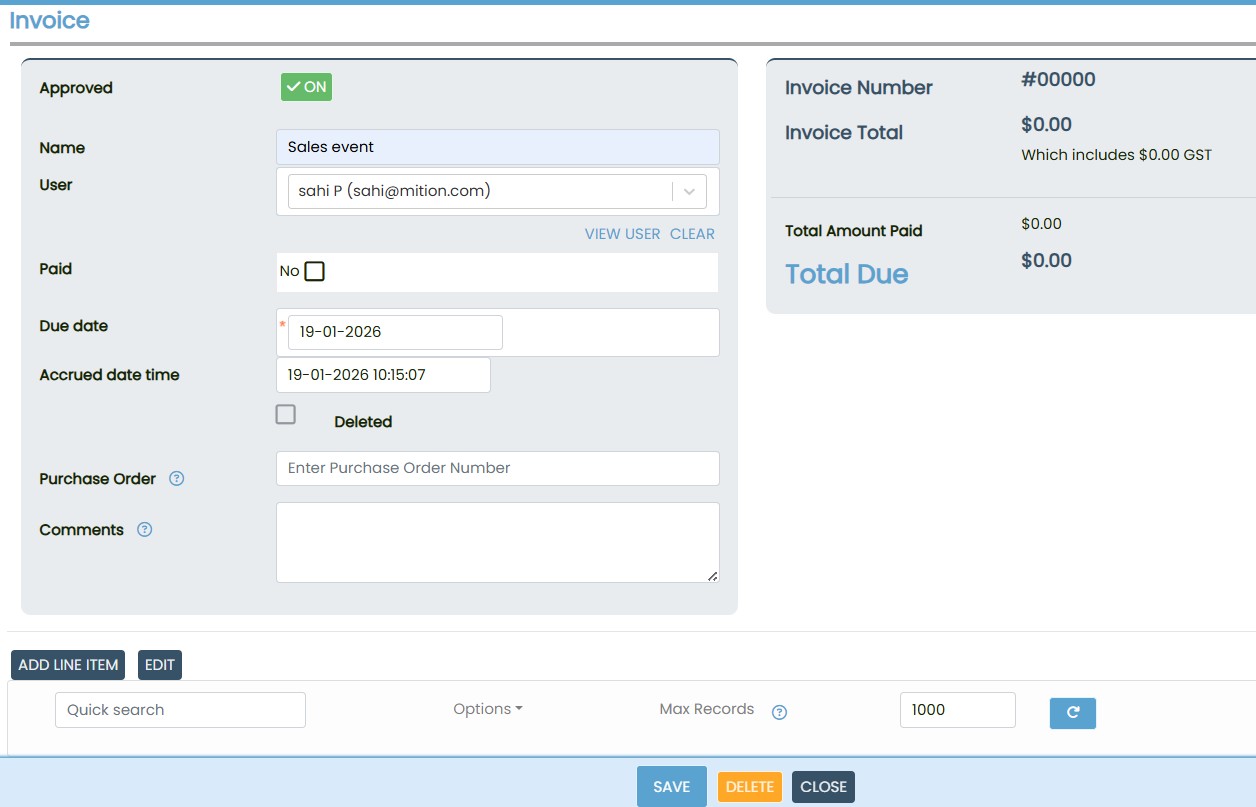
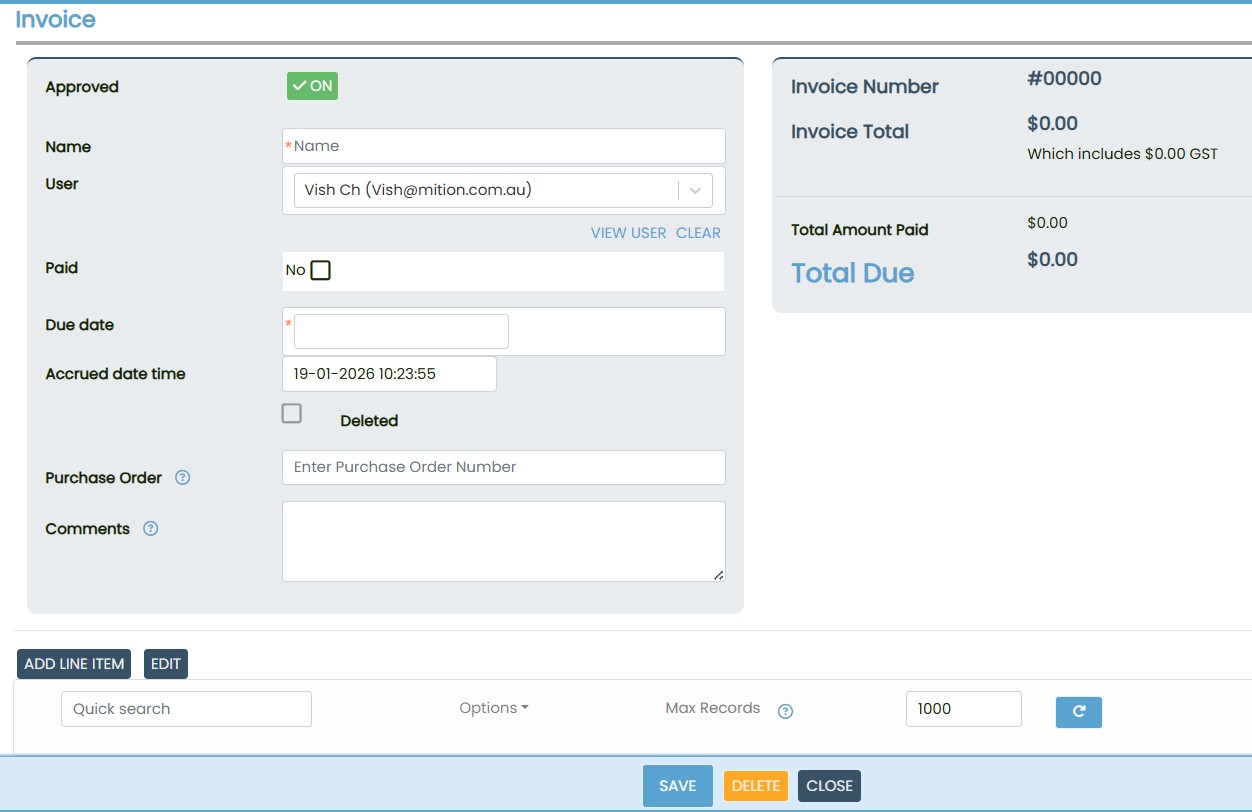
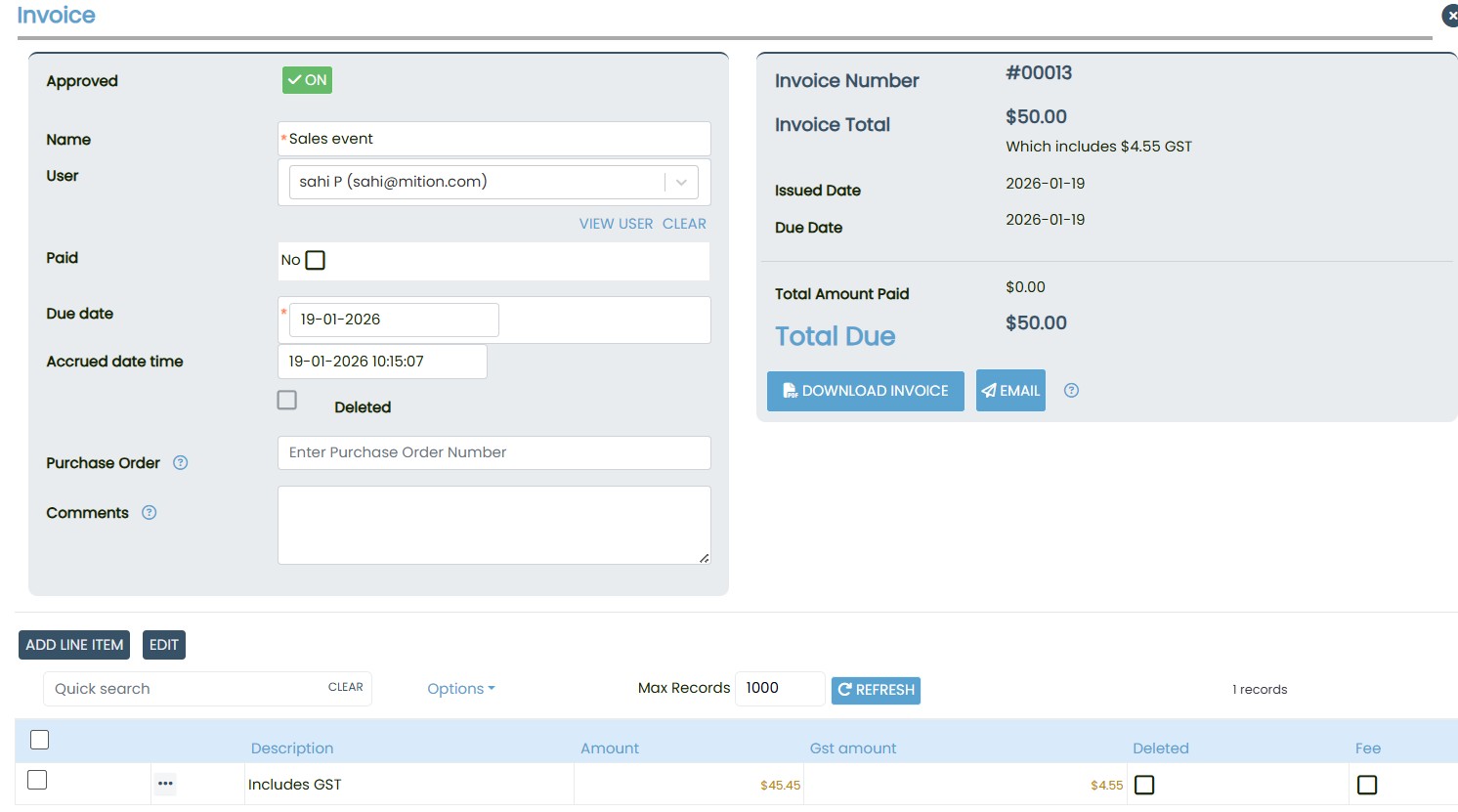
- Enter the invoice details:
- Invoice Name
- User (select the user here)
- Due Date
- Accrued Date/Time
- Purchase Order Number (optional)
- Once the details are entered, click Add Line Item
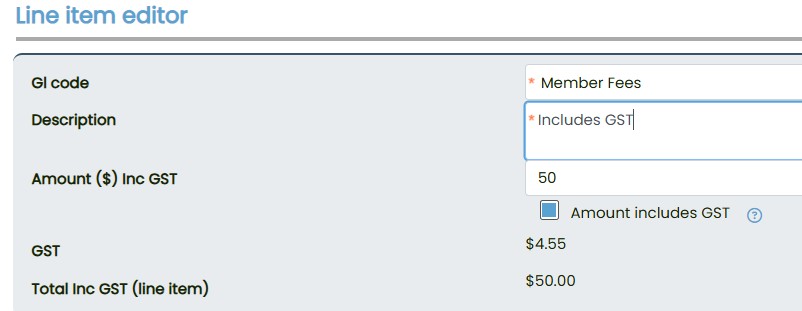
- Add the amount and any other required line‑item information
- Save the invoice
Creating an Invoice from a User Profile
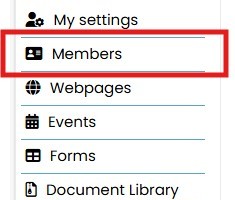
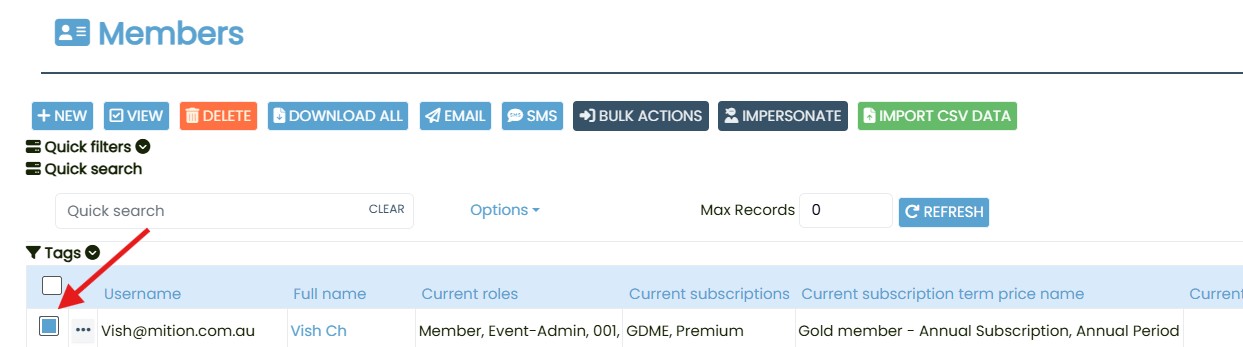
- Open the user’s profile
- Go to Finances > Invoices
- Select New
- Enter the invoice details:
- Invoice Name
- Due Date
- Accrued Date/Time
- Purchase Order Number
- Click Add Line Item
- Add the amount and any other line‑item details
- Save the invoice



×