Sending an Invoice
Knowledge Base | Invoicing | Sending an Invoice by Email Directly from the Invoice Screen
Mition now allows staff to send an invoice directly from the invoice record using a pre‑curated email template. This streamlines communication by reducing the process to a single step — no more copying text, exporting PDFs, or switching screens.
This feature ensures consistency, saves time, and helps staff send professional‑looking invoice emails with minimal effort
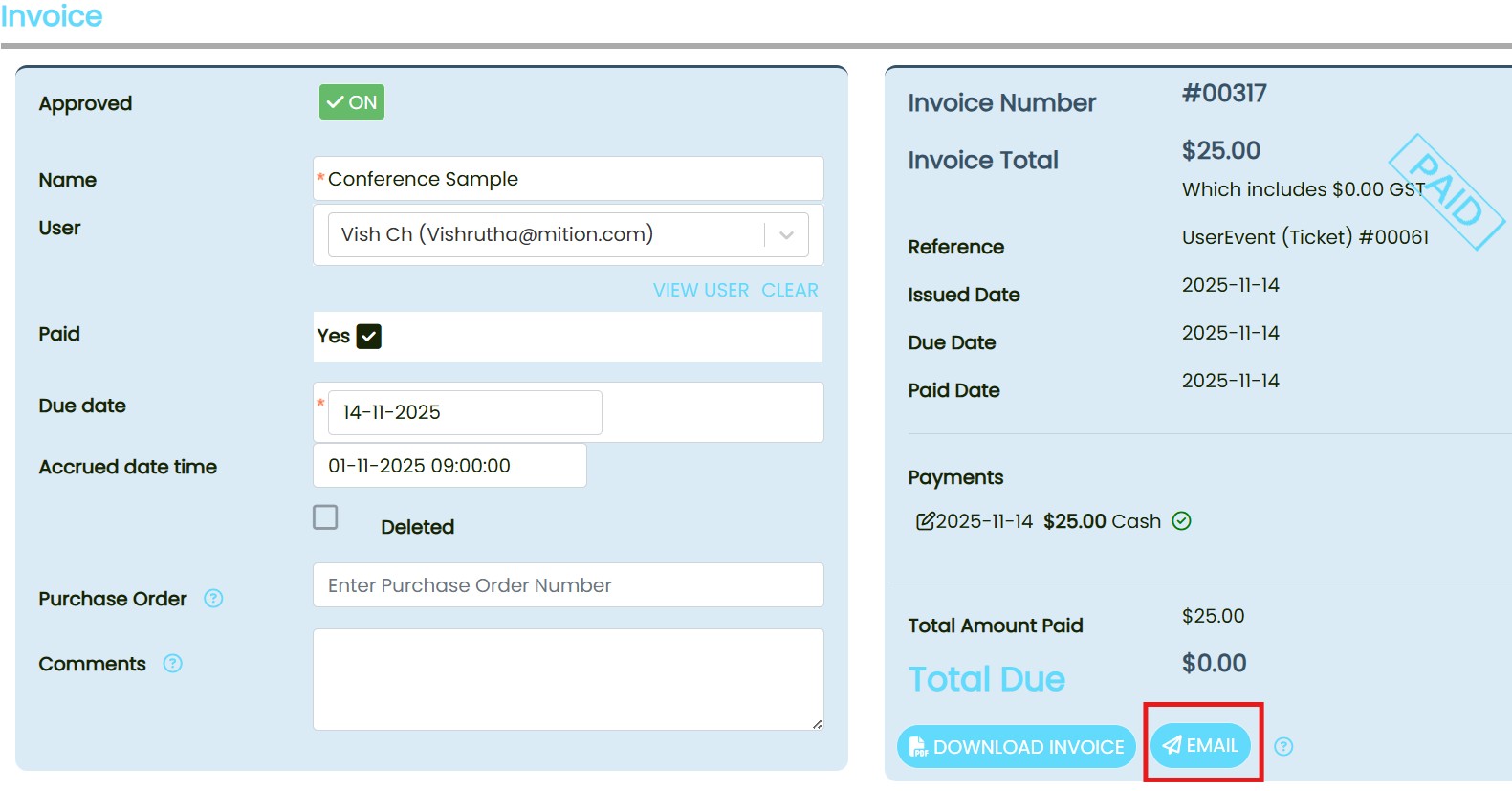
When viewing an invoice in Mition, staff can now:
- Open the invoice.
- Select Email Invoice.
- Choose from a list of pre‑curated email templates.
- Send the email immediately — the invoice PDF (or link) is automatically attached.
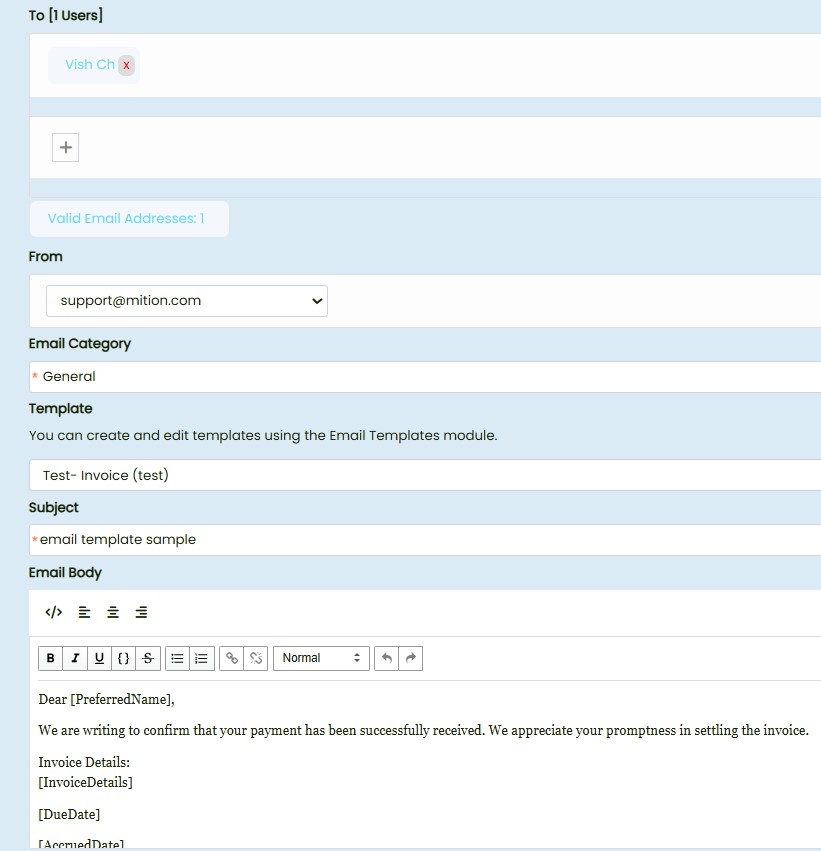
Steps to Send an Invoice Email
- Navigate to Invoices in Mition.
- Open the invoice you want to send.
- Click Email Invoice.
- Select a template from the dropdown list.
- Review.
- Click Send.
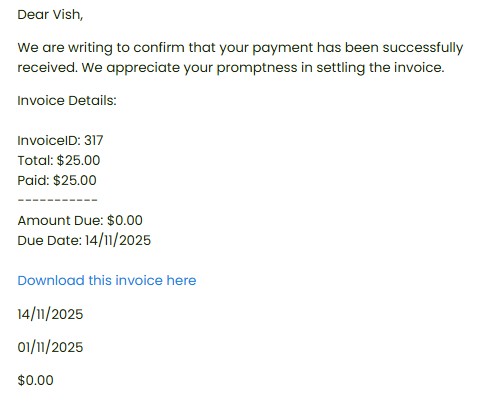
NOTE:
Depending on your Mition setup, only users with the appropriate permissions (e.g., Finance, Admin, or Billing) may see the Email Invoice button.
If a staff member cannot access this feature, an administrator may need to update their role permissions.