Merging User Accounts (Members)
Knowledge Base > Members > Merging User Accounts (Members)
In any organizational system, duplicate user accounts can lead to fragmented data and administrative inefficiencies. To maintain a clean and unified user database, administrators can use the Merge Users feature to consolidate two accounts into one. This process ensures that all relevant data—such as invoices, subscriptions, event participation, and roles—is transferred seamlessly from the source account to the target account. This guide walks you through the steps to safely and effectively merge user accounts using the admin dashboard.
Merging is a permanent action that consolidates all data from a source account into a target account. Use this feature to clean up duplicates or unify user histories.
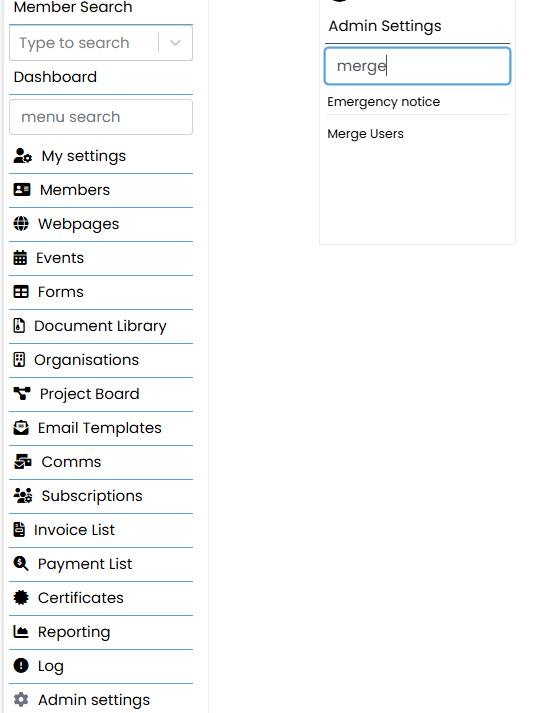
Access the Merge Tool:
Dashboard > Admin Settings > Merge Users
Go to the Admin Settings section via the left sidebar.
Use the search bar to type "merge".
Select Merge Users from the available options.
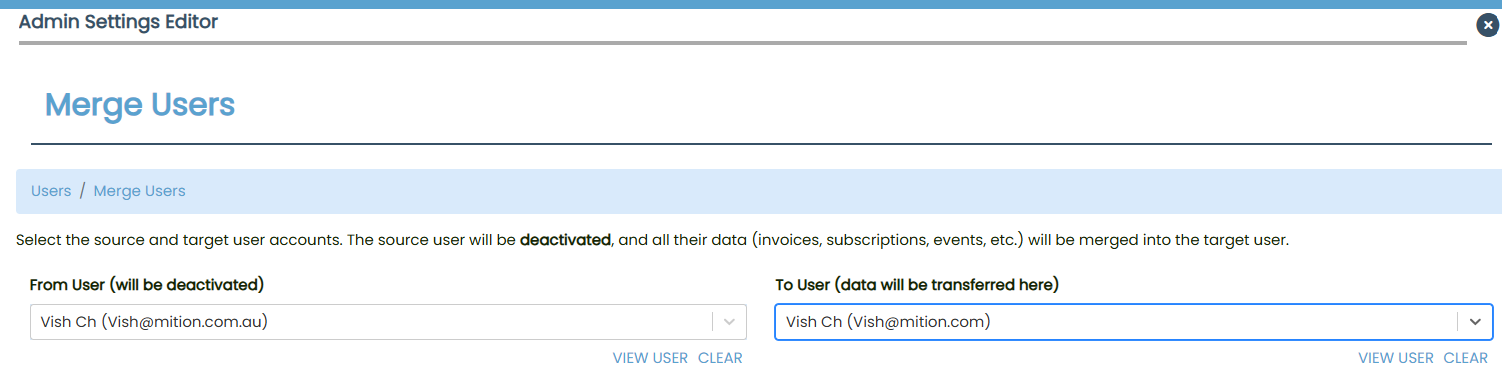
In the Merge Users interface:
From User (will be deactivated): Select the account to be merged and deactivated.
To User (data will be transferred here): Select the target account that will retain all data.
- Use the VIEW USER button to verify each account before proceeding.

A warning will appear:
"!!WARNING!! By clicking the next button you understand that this step cannot be undone."

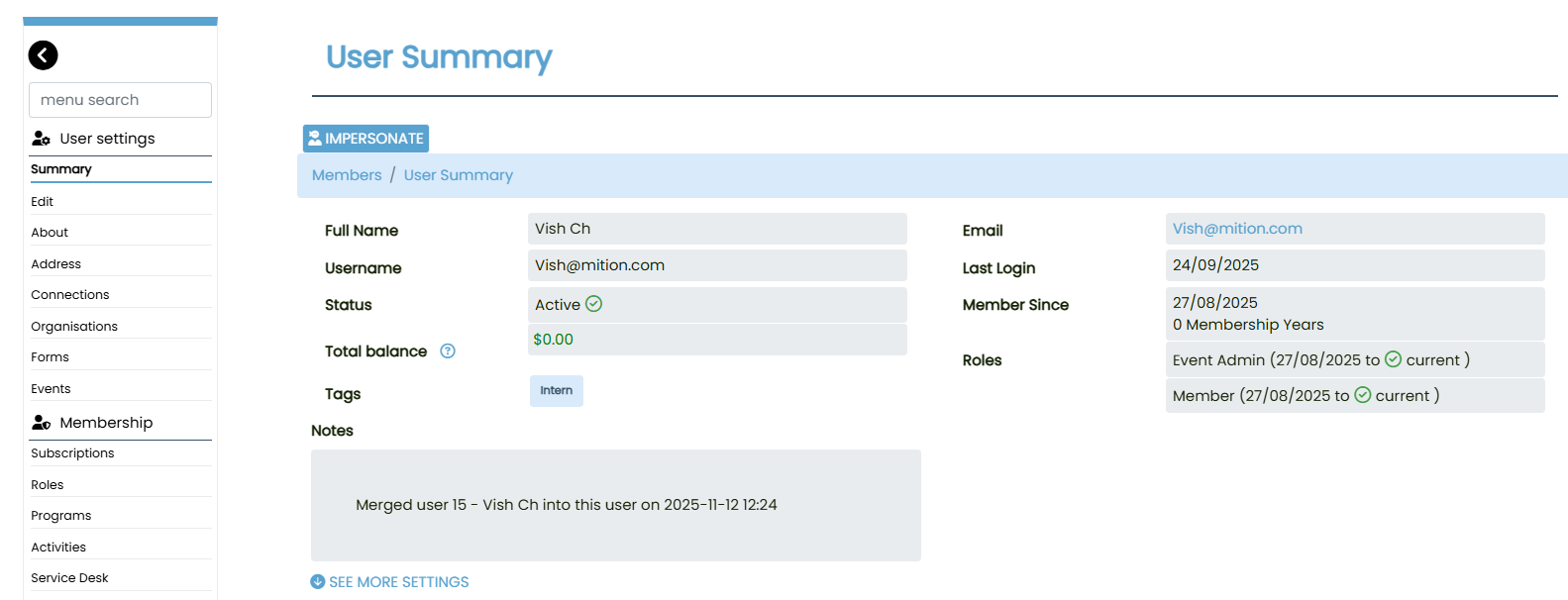
After the merge:
- The target account will display a note confirming the merge
- All roles, tags, login history, and membership details will be unified under the target account.
- The source account will be deactivated and no longer accessible. This enhancement provides a more streamlined and user‑friendly experience for administrators. By remembering the last screen viewed during bulk edits, the system saves time, reduces repetitive navigation, and improves productivity when managing multiple users. The functionality is scoped specifically to bulk operations in Member Search, ensuring that it enhances group workflows without altering the behaviour of single‑user edits.
Merging user accounts is a powerful tool for maintaining data integrity and streamlining user management. By following this guide, administrators can confidently consolidate duplicate profiles while preserving all essential user information. Always double-check account details before confirming a merge, as this action is irreversible. For ongoing account maintenance, consider periodically reviewing your member list for potential duplicates.